|
This
page contains information for the Achieve Planner /
Pocket Informant Active Sync Beta Test for the 1.8
release.
Note that the Pocket Informant ActiveSync
implementation is beta software that still contains
bugs. Don't use this software unless you are comfortable
with beta software.
Here's what you will need to
participate in the beta:
1) You need to have Pocket Informant
2007 or later and a Windows Mobile 2005 compatible device. Please
install Pocket Informant on the device before
continuing.
2) If you participated in an earlier
beta of the Achieve Planner Pocket Informant sync, you
need to uninstall the Achieve Planner sync components
from the PC and from the device.
If you did not participate in a
previous beta, you can proceed to step 3.
2.1) Remove Achieve Planner sync from
the mobile
Go to Programs -> Settings -> System
(in your mobile device) and selecting the "Remove
Programs" item... then select the Effexis Achieve
Planner Sync from the list.
2.2) Remove the Achieve Planner sync
from your PC.
Go to "c:\Program Files\Effexis
Software\Achieve Planner Synchronization" folder... then
double click on the uninst.exe item in this folder.
2.3) Clear the Pocket Informant Sync
History
Press Ctrl+Shift+F6 from within
Achieve Planner to display the Achieve Planner Active
Sync dialog. Then click on the 'Clear Sync History...'
button.
This will delete all the sync history
between Achieve Planner and the Pocket PC.
3)
ActiveSync
Provider setup installer - Download and run the
installer. This will install the ActiveSync provider
components, and a .CAB file that needs to be installed
on your mobile device (this should be done automatically
next time you cradle the device)
NOTE for SmartPhone Users:
Because of extra security restrictions in many modern
smartphones, your smartphone may not allow you to
install the Achieve Planner sync cab file into your
smartphone unless you turn security OFF.
If you don't feel comfortable doing
this, please wait until the official release.
4) You need to install and use the
1.8.1 release. This contains the
latest changes for ActiveSync on the AP side.
Download it from here
5) After installing the ActiveSync
setup, I strongly recommend that you backup your PocketPC state
and your Achieve Planner data file so that you can safely test the Achieve
Planner sync without messing up your existing tasks and
other Pocket Informant information.
Check your device for a backup
utility. Many devices implement their own backup/restore
utility because Microsoft doesn't provide one with
ActiveSync.
If your device doesn't have a
backup/restore utility, there are commercial software
utilities you can use, while none are free, some provide
free trials which may be sufficient for this.
Running the Active Sync
To run the ActiveSync once everything
is setup, please follow these steps:
1) Cradle your mobile device - This
will invoke the ActiveSync and synchronize Pocket
Informant projects/tasks with a temporary cache database
on your PC.
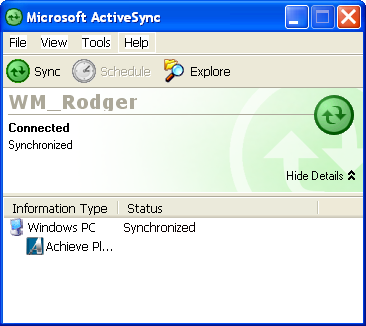
If this is the first time you sync,
you may need to activate the Achieve Planner ActiveSync
provider using the (Tools->Options menu in the Microsoft
ActiveSync window)
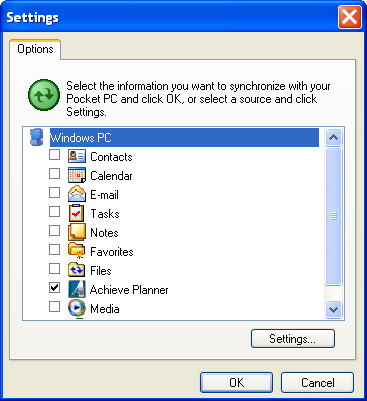
Make sure Achieve Planner
is checked and Tasks is unchecked (having both AP and
Tasks checked at the same time could lead to duplication
and confusion with the desktop Outlook task database)
2) Wait for the
ActiveSync to complete the full synchronization with the
Achieve Planner Provider. When it's done, you should see
the status as 'Synchronized'
NOTE: this step could
take a while to complete depending on the number of
tasks that need to be synced.
Leave the ActiveSync
window open while completing the following steps...
3) If Achieve Planner is
not already running, start it.
4) From within AP, hit
Ctrl+Shift+F6 to launch the Achieve Planner ActiveSync
dialog:
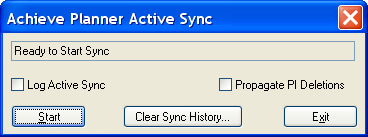
5) Make sure that the
device is still cradled and that the ActiveSync window
is still open.
6) Click on the Start
button of the Achieve Planner Active Sync dialog. You
should see the following reminder...
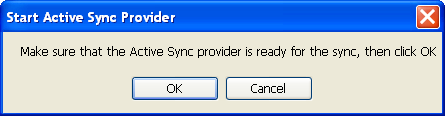
Click OK to continue with
the active sync.
7) After the sync is
completed, you should see a message in the AP sync
window. Just press exit to close
and restore the main AP window.
(If there is a
communication timeout during the active sync, the dialog
may appear to be frozen for up to 30-60 seconds as it
attempts to re-establish communication).
8) That should have completed the sync
between AP and the ActiveSync provider cache.
If there are AP projects & tasks that
need to be propagated to the mobile device, you will see
another ActiveSync synchronization (between ActiveSync
and the PocketPC) take place to update the device
with the new items.
NOTE: this step could also take a
while to complete depending on the number of tasks being
sent to the mobile. For example, with 1,000 tasks, the
process could take up to 20 - 30 minutes.
By default, the ActiveSync provider
will not propagate any completed AP projects & tasks to the
device, only Active items are propagated. You can change
this in the settings of the AP Active Sync provider from
within Microsoft Active Sync.
Propagating PI deletions. By
default, items deleted in PI are NOT deleted in AP, they
are just marked so that they don't get resent to PI.
If you would like items deleted in PI
to also be deleted in AP, you need to check the
"Propagate PI Deletions" box in the AP ActiveSync
dialog.
NOTE: This setting only blocks
deletions in the PI to AP direction, deletions in the
other direction (from AP to PI) are NOT blocked.
This means that if you revert to an
old AP data file that does not contain items imported
from PI into AP, ActiveSync will interpret this as the
items having been deleted in AP, and will probably
delete them in PI as well.
That's why I strongly recommend that
you backup your PocketPC state before using the sync.
Achieve Planner ActiveSync Beta
Forum. The beta forum for the ActiveSync feature is
available here.
Please let me know if you have any
questions, concerns, or problems with any of these
steps, if the instructions are not clear, etc.
You can send me a private
message via the forum, send an email to support [at] effexis.com, or post your message in the
beta forum.
Doing a "fresh" sync between AP and
PI. To do a "fresh"
sync between AP and PI, click on the "Clear Sync
History..." button before starting the sync.
This will allow you to delete all
tasks in PI and do a "fresh" sync with AP.
Only use this if you know what you are
doing. Otherwise, you may end up with duplicated items
in PI and/or AP.
Thank you again for participating in
the beta test! I appreciate your help. |